How to Connect WordPress 7.0 to Claude Code via MCP
A practical guide to connecting WordPress 7.0 to Claude Code with MCP, application passwords, the MCP Adapter, and exposed WordPress abilities.
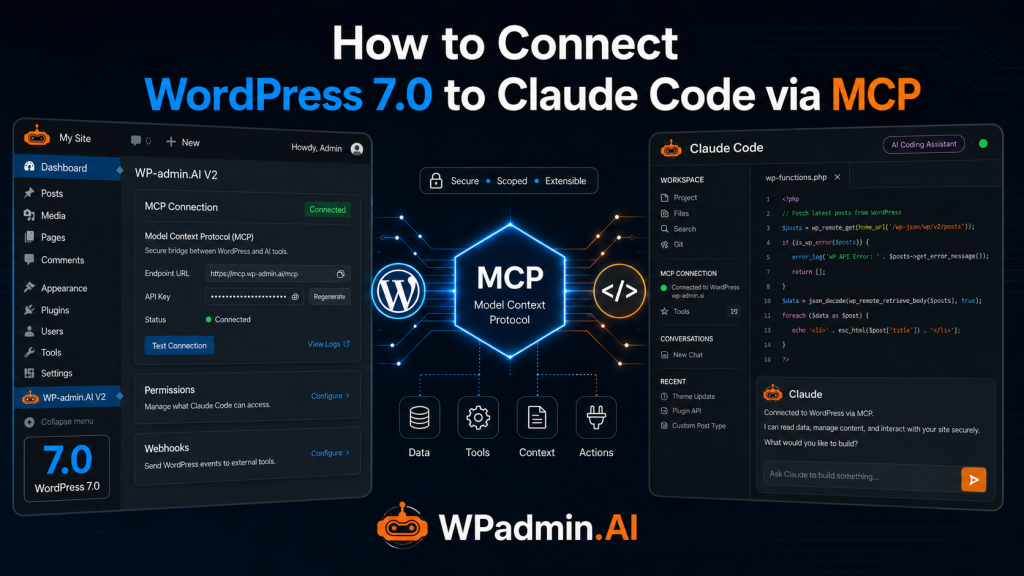
TL;DR
To connect WordPress 7.0 to Claude Code with MCP, install the WordPress MCP Adapter, install its Composer dependencies, flush permalinks, create a WordPress application password, add the MCP endpoint to Claude Code with authorization, expose only the abilities you intend to use, then verify the connection before requesting changes.
Key Takeaways
- WordPress 7.0 includes AI-related infrastructure, but Claude Code still needs MCP setup before it can connect.
- The MCP Adapter, application password, and Claude Code MCP configuration must all be set up correctly.
- Only exposed abilities are available to Claude Code, so do not assume it can edit everything automatically.
- WPadmin.AI Premium is the simpler paid option if you want less manual setup.
WordPress 7.0 includes AI-related infrastructure around the Abilities API, and the WordPress MCP Adapter can bridge those abilities to tools like Claude Code. You still need extra setup before Claude can discover WordPress functionality or make changes to your website. This guide walks through every step to get it working from scratch.
What’s New in WordPress 7.0
WordPress 7.0 introduces important AI-related building blocks:
| Component | What it does |
|---|---|
| Abilities API | Registers WordPress actions as typed, discoverable “abilities” |
| MCP Adapter | Bridges those abilities to the Model Context Protocol (MCP) so AI clients can call them |
| AI Client | A shared PHP/JS SDK for making LLM calls from within WordPress |
The Abilities API is available in WordPress core. The MCP Adapter is a separate WordPress package that must be installed and configured before MCP clients can use exposed abilities.
Prerequisites
- WordPress 7.0 or higher
- Composer installed on your machine
- Claude Code CLI installed
- WP CLI installed (optional)
- Administrator access to your WordPress site
Step 1 — Install the MCP Adapter Plugin
The MCP Adapter is the official WordPress plugin that exposes your site as an MCP server. It is maintained at github.com/WordPress/mcp-adapter.
Note:
– An older plugin by Automattic (Automattic/wordpress-mcp) is deprecated. Use only the officialWordPress/mcp-adapter.
– This plugin does not exist in the WordPress repo so you cannot find it in the “Add new Plugins” section of your WordPress dashboard
Install via WordPress Admin
- Download the latest release
.zipfrom github.com/WordPress/mcp-adapter/releases - In WP admin go to Plugins → Add New → Upload Plugin
- Upload the zip and click Activate
Install via WP-CLI
wp plugin install https://github.com/WordPress/mcp-adapter/releases/latest/download/mcp-adapter.zip --activateStep 2 — Run Composer Install
If you installed the plugin from GitHub (not the plugin directory), it requires Composer dependencies. Navigate to the plugin folder and run:
composer install --no-dev .The plugin folder is located at:
wp-content/plugins/mcp-adapter/If you skip this step you will see the error:
MCP Adapter: The Composer autoloader was not found. If you installed the plugin
from the GitHub source code, make sure to run `composer install`.
Step 3 — Flush Permalinks
After activating the plugin, flush rewrite rules so the REST API registers the new MCP routes:
- Go to Settings → Permalinks
- Click Save Changes (no changes needed — just saving flushes the rules)
Verify the MCP route is registered
curl https://yoursite.com/wp-json/Look for mcp in the list of namespaces. You should see:
https://yoursite.com/wp-json/mcp/mcp-adapter-default-serverStep 4 — Generate a WordPress Application Password
The MCP endpoint uses WordPress Application Passwords for authentication.
- Go to Users → Profile in WP admin
- Scroll to Application Passwords
- Enter a name (e.g.
Claude MCP) and click Add New Application Password - Copy the password immediately — it is only shown once (format:
xxxx xxxx xxxx xxxx xxxx xxxx)
Step 5 — Add the MCP Server to Claude Code
Run the following command, replacing the placeholders with your site URL, WordPress username, and application password (remove spaces from the app password before encoding):
First, Base64-encode your credentials:
echo -n "your-username:your-app-password-no-spaces" | base64Then add the MCP server:
claude mcp add my-wordpress-site https://yoursite.com/wp-json/mcp/mcp-adapter-default-server --transport http --header "Authorization: Basic <base64-encoded-credentials>"On success you will see:
Added HTTP MCP server my-wordpress-site with URL: https://yoursite.com/wp-json/mcp/mcp-adapter-default-server to local configMake sure you exit Claude Code and start it again
Step 6 — Enable Core Abilities via MU-Plugin
By default, the three built-in core abilities exist but are not exposed via MCP (mcp.public is not set). You need to enable them with a filter.
Create the following file at wp-content/mu-plugins/mcp-ability-bridge.php:
<?php
/**
 * Plugin Name: MCP Ability Bridge
 * Description: Marks core WordPress abilities as accessible via MCP.
 */
add_filter( 'wp_register_ability_args', function( $args, $ability_id ) {
    $abilities_to_expose = [
        'core/get-site-info',
        'core/get-environment-info',
        'core/get-user-info',
    ];
    if ( in_array( $ability_id, $abilities_to_expose, true ) ) {
        $args['meta']['mcp']['public'] = true;
    }
    return $args;
}, 10, 2 );
MU-plugins load automatically — no activation needed.
At this point, you are only exposing the three abilities above. Do not assume Claude Code can edit your content yet. To expose more abilities, you need to write code or use a trusted plugin that exposes the specific abilities you want available. WPadmin.AI Premium is a simpler paid option if you want WordPress help without manually configuring MCP. Buy Premium, pair your website with a simple token license in your WordPress settings page, and you are done.
Step 7 — Verify the Connection
Restart Claude Code, then run:
/mcpYou should see your WordPress site listed as a connected MCP server.
To confirm abilities are discoverable, ask Claude Code:
“Discover available WordPress abilities on my site”
You should get back the three core abilities:
| Ability | Description |
|---|---|
core/get-site-info | Returns site name, URL, admin email, language, version |
core/get-user-info | Returns profile details for the authenticated user |
core/get-environment-info | Returns PHP version, DB version, WordPress version, environment type |
Extending with Custom Abilities
The three core abilities are read-only. To expose additional WordPress functionality (e.g. listing plugins, querying posts), you can register custom abilities using wp_register_ability() and add them to the $abilities_to_expose array in your mu-plugin.
Example — add a custom ability to list inactive plugins:
wp_register_ability( 'custom/get-inactive-plugins', [
    'label'       => 'Get Inactive Plugins',
    'description' => 'Returns a list of installed but inactive plugins.',
    'callback'    => function( $params ) {
        if ( ! function_exists( 'get_plugins' ) ) {
            require_once ABSPATH . 'wp-admin/includes/plugin.php';
        }
        $all_plugins    = get_plugins();
        $active_plugins = get_option( 'active_plugins', [] );
        $inactive       = array_filter( $all_plugins, function( $file ) use ( $active_plugins ) {
            return ! in_array( $file, $active_plugins, true );
        }, ARRAY_FILTER_USE_KEY );
        return array_keys( $inactive );
    },
    'meta' => [ 'mcp' => [ 'public' => true ] ],
] );
Now, your WordPress 7.0 website is connected to Claude Code and you can get things done from the MCP.
Troubleshooting
| Error | Cause | Fix |
|---|---|---|
rest_no_route 404 | MCP routes not registered | Flush permalinks (Settings → Permalinks → Save) |
rest_forbidden 401 | Missing or wrong credentials | Check Application Password and Base64 encoding |
Composer autoloader not found | Composer dependencies missing | Run composer install --no-dev in the plugin folder |
abilities: [] from discover | Abilities not flagged as MCP public | Add the mcp-ability-bridge.php mu-plugin from Step 6 |
mcp.public!=true error | Same as above | Same fix as above |
Looking for a simpler option?
If you want AI-assisted WordPress help without manually configuring MCP, application passwords, exposed abilities, and Claude Code, WPadmin.AI Premium gives you a simpler option: buy Premium, pair your website with a simple token license in your WordPress settings page, and you are done.
Official Resources
- WordPress/mcp-adapter on GitHub
- MCP Adapter Releases
- Introducing the WordPress MCP Adapter – WordPress Developer Blog
- wp_register_ability() Function Reference
- WordPress 7.0 Field Guide – Make WordPress Core
- Client-Side Abilities API in WordPress 7.0 – Make WordPress Core
Looking for zero-configuration alternative of WP MCP?
Try WPadmin.AI